
Choose a YouTube video download for your device
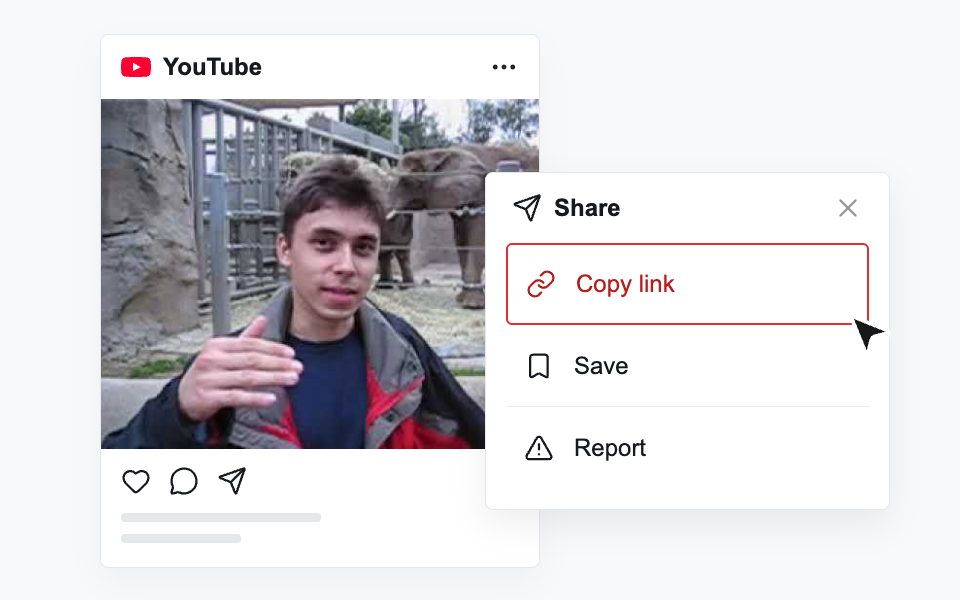
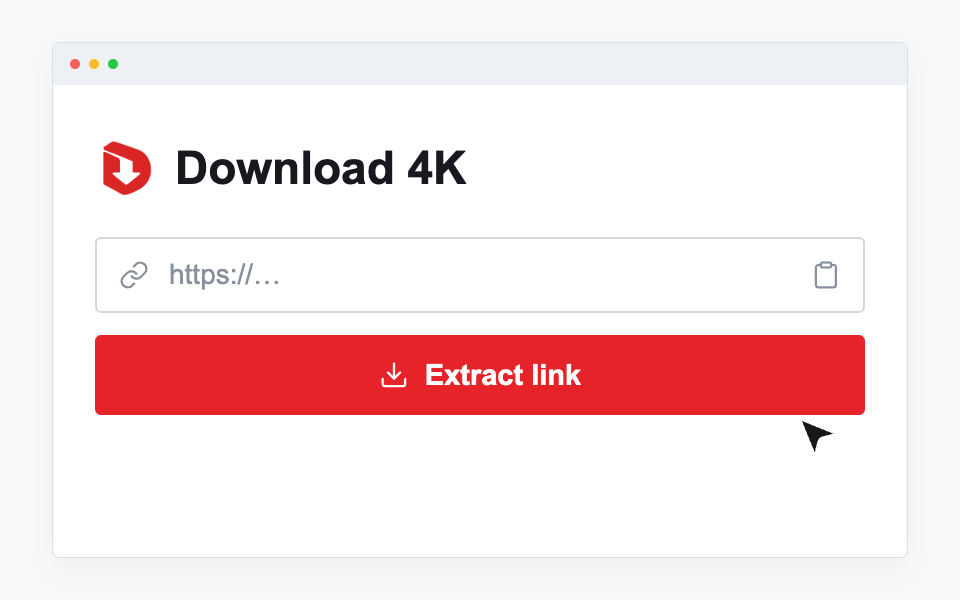
Download 4K is a browser-based YouTube video downloader for saving public videos online. Paste a YouTube link, compare the available formats, and choose a file for your device. Download MP4, HD or 4K video when the source provides it, without installing software or a browser extension. Only save videos you own or have permission to download.
A larger resolution is useful when the original recording contains enough detail and you will watch it on a suitable display. It also uses more storage and takes longer to transfer. For a short clip on a phone, a smaller file may be more practical than the largest version. Keep the original post link alongside important downloads so that you can return to the source if you later need a different available version.
Before relying on a downloaded clip for an offline session, open the saved file in the player you intend to use. Confirm that playback reaches the end, the picture has the expected proportions and the sound is present when needed. A browser download that was interrupted can leave an incomplete file, even if a filename appears in your downloads folder. Checking the finished transfer is especially useful before a journey or a presentation where you will have limited connectivity. If the file does not play, inspect the sound label and container again, try a compatible player, or select another available version. Keep your original reference link so that you can explain which source you used and refresh the download if necessary.
4K and 1440p: detail, storage and source limits
4K commonly refers to a 2160p video, while 1440p sits between Full HD and 4K. These options can preserve fine details such as scenery, handwriting or small interface elements when the upload was recorded and processed at that resolution. A 4K display does not make a lower-resolution upload become a 4K source. This tool does not upscale a 720p or 1080p file, and a filename containing “4K” is not evidence that a 2160p download is available.
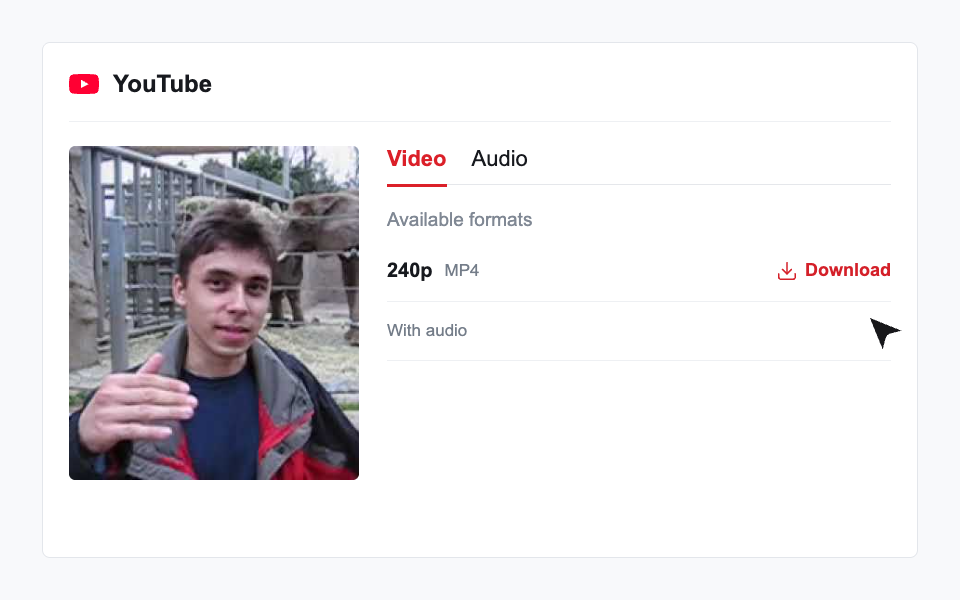
Check the actual resolution listed in the result. If a 2160p option exists, also inspect its sound information before downloading it. Higher-resolution versions may arrive as a video-only stream with a separate sound file. Our dedicated 4K page explains that choice in more detail. If 1440p is available but 2160p is missing, 1440p may still be a useful balance between detail, transfer time and storage for the screen you plan to use.
1080p and 720p: practical everyday choices
1080p, also called Full HD, is a useful starting point for many laptop screens, desktop displays and modern phones. It can show clear detail without the storage demands of a high-bitrate 4K file. A 720p version can be convenient for a small screen, a slower connection or a quick reference copy where fine visual detail is less important. Compare the file sizes when they are supplied, because duration and compression also affect the size of a download.
Two files with the same resolution can have different compression settings, frame rates or containers. Resolution alone is therefore not a complete measure of image quality or device compatibility. Choose an option your player can open and inspect whether it includes sound. For recordings with small text, Full HD may be easier to read than 720p. For a simple scene viewed on a phone, the difference may matter less than download speed and available storage.
Why a video may stop at 1080p
The source upload may only be available at 1080p. A creator can also upload a higher-resolution recording whose processing is still incomplete, or a particular extraction result may not expose all the versions you can see in the YouTube player. Access restrictions and temporary provider failures can reduce the returned choices as well. A title advertising 4K does not guarantee that the specific public link will return a downloadable 2160p file at the time you try it.
If you expected a higher resolution, first check the original video and confirm that it is public and still accessible. You can retry extraction later if the upload is new or the failure appears temporary. The result list remains the source of truth for the current download. Do not rename a 1080p file to suggest it is 4K: that changes the name, not the pixels. Select an available version or return later to check again.
MP4 containers and files with sound
MP4 is a file container, not a resolution. An MP4 download might be 720p, 1080p or another size, depending on the video. Many browsers and devices can play common MP4 files, but playback still depends on the codecs inside them. Look at both the format and the quality label when selecting a file. The dedicated YouTube to MP4 page limits its list to actual MP4 options so you can focus on that container without confusing it with other returned formats.
A “With audio” label identifies a file reported as containing sound. A “Separate audio” label means the video and sound are different files. The separate-download dialog lets you save both, but it does not merge them into one playable movie. If you want a single file immediately, choose an available complete version with sound. When you need a separate high-resolution version, use a media editor to combine the streams after downloading and verify the result in your usual player.
Save a video on a phone or computer
On a computer, select Download and check your browser download list. Your browser may ask for a destination or use the default Downloads folder. If the action opens a media preview, use the browser’s save controls rather than assuming the file has already been stored. Make sure there is enough free space for the file before starting a long download. Keep the browser open until the transfer finishes, especially on a slow connection.
On an iPhone or iPad, check Safari downloads and the Files app after saving. A video stored in Files does not always appear automatically in Photos; use the available share or save option if you want it there and the format is supported. On Android, check the browser download manager or the device Files app. Mobile browsers may handle previews and downloads differently. Test a short file first if you are unsure how your particular browser handles the selected video format.
Vertical Shorts keep their original shape
Public YouTube Shorts links can use a /shorts/ address or a normal watch link. A vertical recording should stay vertical when you save the original file; downloading does not require stretching it into a landscape frame. Use the YouTube Shorts downloader for instructions focused on short clips and portrait playback. The file’s original dimensions determine its shape, and Shorts do not all share one resolution. Choose the actual available version and check it on the device where you plan to watch.
Refresh expired downloads and troubleshoot public links
Download 4K download tickets are valid for 45 minutes. The upstream media URL may expire sooner. Paste the original YouTube link again to request fresh results; a public post can still become unavailable or be removed.
The 45-minute period applies to the generated download ticket, not to the lifetime of the original YouTube video and not to a promise that the remote file will stay reachable for that long. If a transfer fails with an expired or unavailable link, return to the input, paste the original post address and extract it again. Avoid bookmarking a temporary download URL as your only reference. Locally hosted example files demonstrate the interface and do not establish which formats your own video will return.
If extraction fails, check for a complete public video link and remove accidental spaces. Private, deleted, age-restricted, region-restricted or otherwise inaccessible videos may not work. A temporary network or provider problem may be resolved by trying again later. Repeatedly submitting the same unavailable link does not remove access restrictions. Keep the error message and the original link if you need to report a problem, and never send passwords, account cookies or other private credentials in the input.